NFT Gift Badge
Showcase an NFT gift badge on your product pages to highlight that purchasing the product includes a special NFT. This guide explains how to add an NFT gift badge to your storefront through the theme editor, ensuring your customers are aware of the unique digital item included with their purchase.
Steps
1. Access the theme editor
You can reach the theme editor either by using the “Add NFT badge” quick link from our app’s dashboard or by going through the Shopify Admin:
- Navigate to ‘Online Store’.
- Select ‘Themes’.
- Click ‘Customize’ on your current theme.
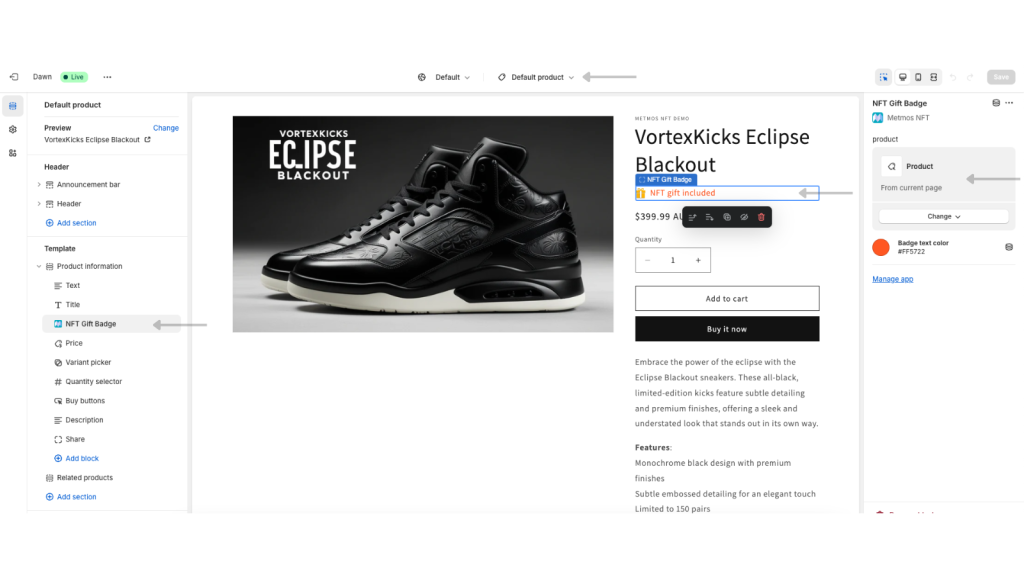
In the theme editor’s top dropdown menu, navigate to Product Pages.
Choose a product page template to edit, like the default product page.
2. Add the NFT Gift Badge App Block
- Add the ‘NFT Gift Badge’ block by selecting it from either the sidebar via ‘Add block’ link or by clicking the in-page ‘+’ icon.
- Once added, ensure the product selector is set to “From current page” to automatically link the badge with the product being viewed.
- Move the block to the position you want the badge to display if needed.

3. Customize the badge
- Customize the badge’s appearance by adjusting the text color to align with your store’s design.
- Position the badge appropriately on the page to ensure visibility and aesthetic harmony.
4. Preview and save
- Use the preview function to see how the badge will appear on the product page.
- Once you are satisfied with the setup and appearance, click ‘Save’ to implement the changes across your store.
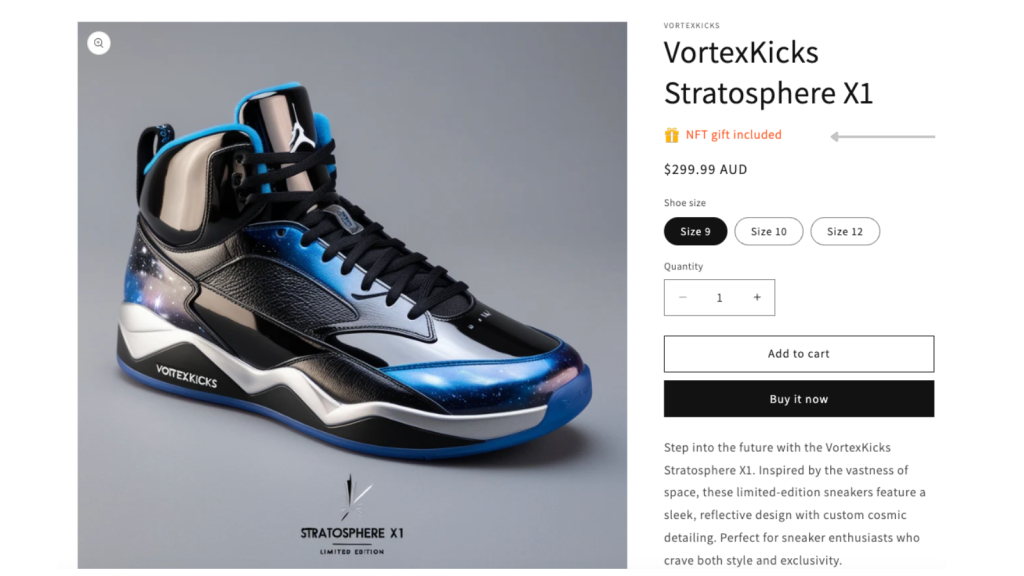
On the product page of your storefront, the NFT gift badge will be displayed in the position you’ve configured in the theme editor. This badge clearly indicates that an NFT gift is included with the purchase, adding unique value to your products and enhancing buyer interest.