How can we help?
Checkout Customization
Enhance your customer’s post-purchase experience by providing clear information about the NFT gifts included with their purchase right on the thank you and order status pages. This guide will show you how to add NFT gift messages using the Shopify checkout editor.
- Navigate to the Checkout Editor
- Log into your Shopify Admin panel.
- Go to
Settingsand thenCheckout. - Click on the
Customizebutton to open the checkout editor.
- Add NFT gift Information to the Thank You page
- In the checkout editor, select the
Thank youpage from the top dropdown menu. - Click on
Add app blockfrom the sidebar and selectMetmos NFT gift. - Drag the
Metmos NFT giftblock to your desired position on the thank you page. - Save your changes to ensure the NFT gift information is applied to the page.
- In the checkout editor, select the
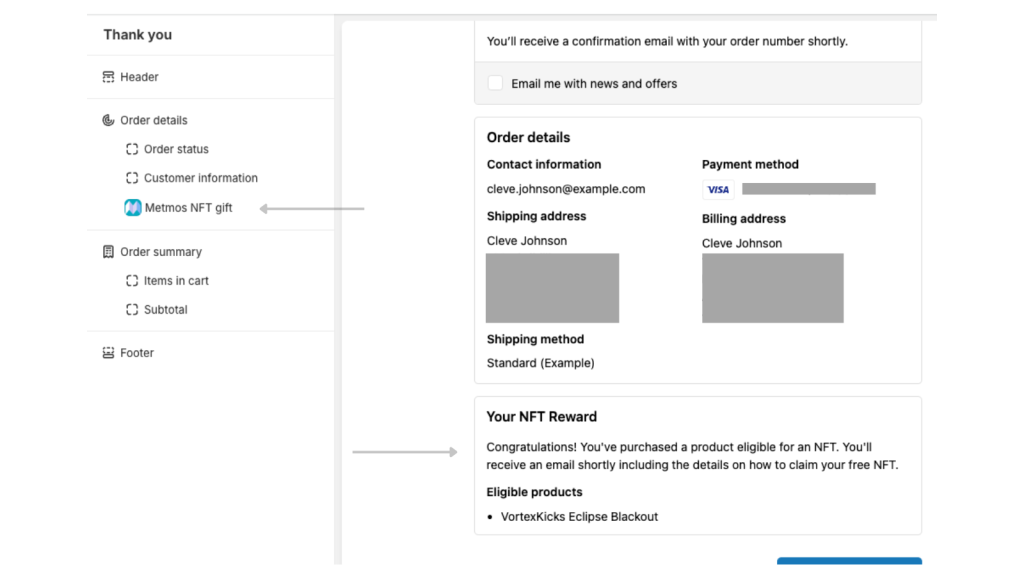
- Add NFT Gift Information to the Order Status Page:
- Select the
Order statuspage from the dropdown menu. - Add the
Metmos NFT giftblock as done on the thank you page, placing it where it’s most visible to customers checking their order status. - Save your changes to make sure the setup is preserved and visible on the order status page.
- Select the
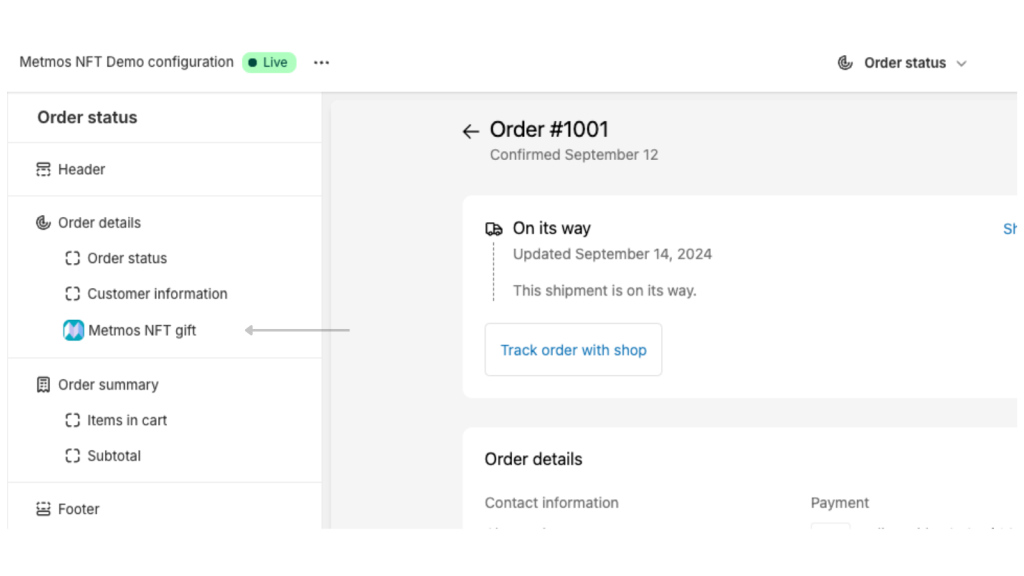
Enhance the customer experience on your storefront by adding custom NFT gift messages on the Thank You and Order Status pages. This ensures customers are clearly informed about the NFT gifts associated with their purchases.
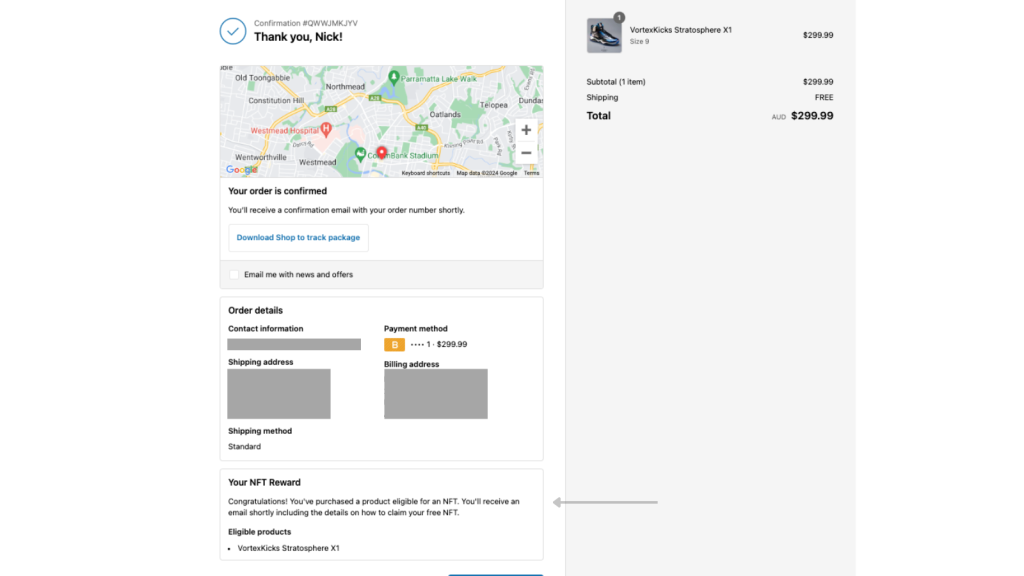
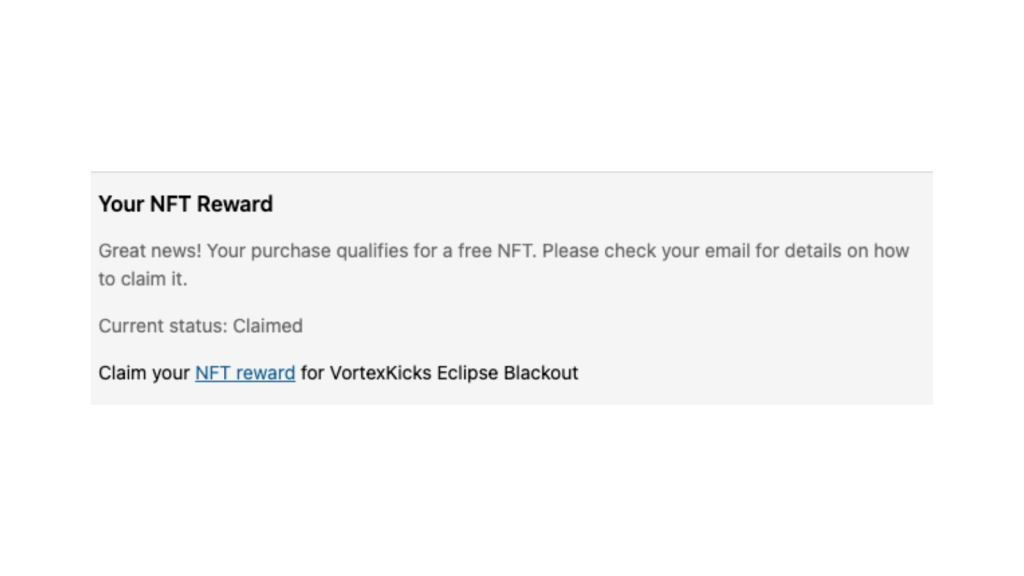
Below are sample views of how the NFT gift information appears on these pages: